Introduction
Every business runs on rules. When a discount exceeds 20%, it needs manager approval. Priority customers get different pricing. Sales totals need to update when quantities change. Today, these rules live in people's heads, scattered across spreadsheets, or buried in email threads. Someone manually checks each entry, calculates every total, and catches errors after they've already caused problems. Teams waste hours on repetitive calculations and still miss critical validations. Different people apply rules differently, and when that key person is out sick, the whole process breaks down.
The Logic Composer transforms these scattered rules into living, breathing intelligence within your data. No more manual checking if order totals match line items. No more wondering if the right approver saw that high-value purchase. Your business rules become guardrails that guide every interaction, calculations that update instantly, and approval flows that route themselves. It's about encoding your expertise into the system itself, ensuring consistency across every team member, and building a business that enforces its own best practices automatically.
What is the Logic Composer?
The Logic Composer is a visual interface for creating business logic without code. Through drag-and-drop blocks and intuitive formulas, you define how your data validates, calculates, and flows through your organization.
Build validation rules that prevent errors before they happen, create calculated fields that update automatically, design dynamic forms that adapt based on user input, and establish conditional behaviors for buttons and interface elements. All without writing a single line of code.
This centralized logic architecture ensures that your business rules evolve with your operational complexity while maintaining data integrity and consistent behavior across all touchpoints. The Logic Composer supports sophisticated conditional branching, mathematical operations, text manipulation, date calculations, and AI integration for intelligent data processing like content classification and dynamic responses based on context.
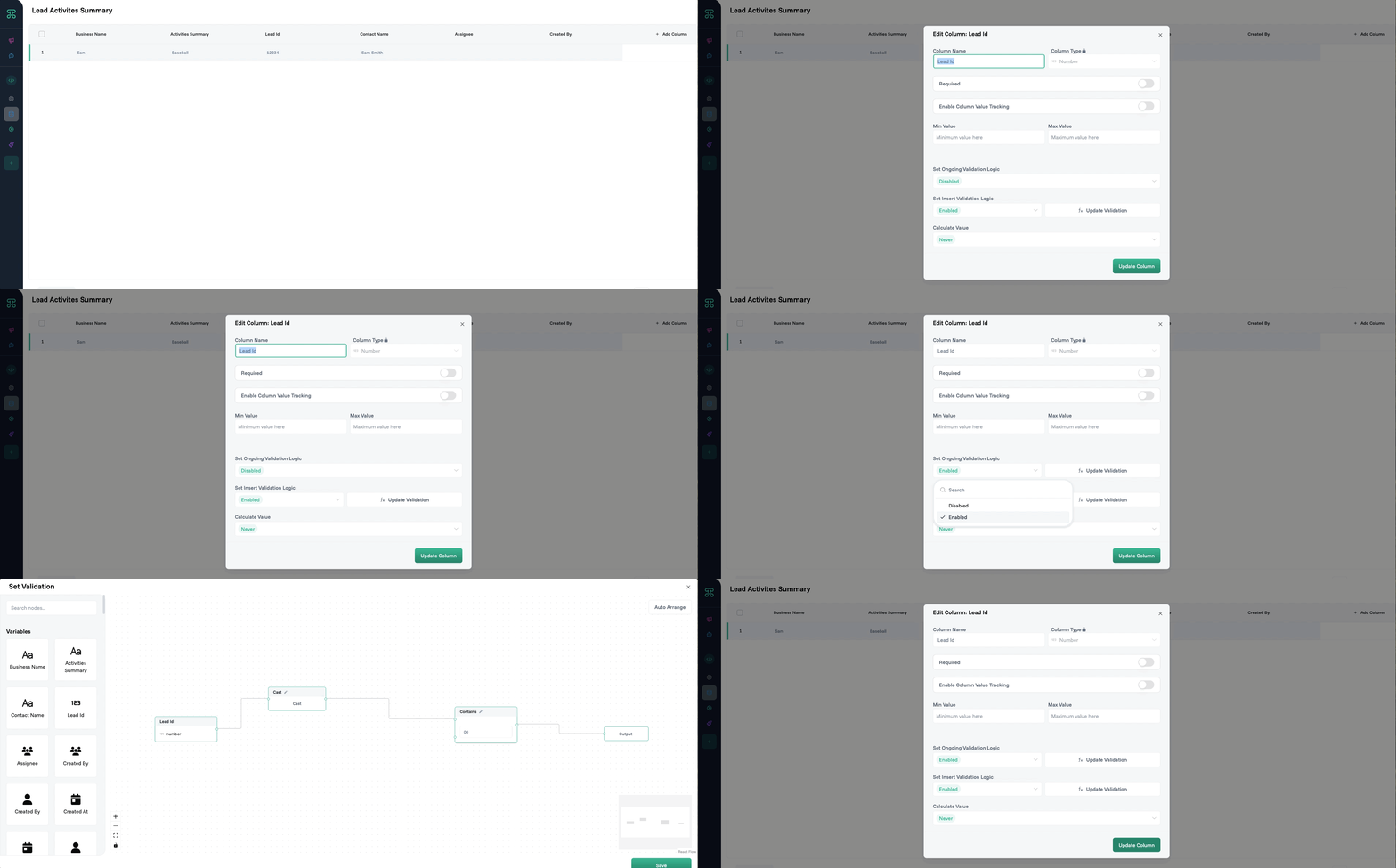
Quick Start: Your First Validation Rule in 5 Minutes
Let's build a simple decision logic rule that ensures project end dates always come after start dates.
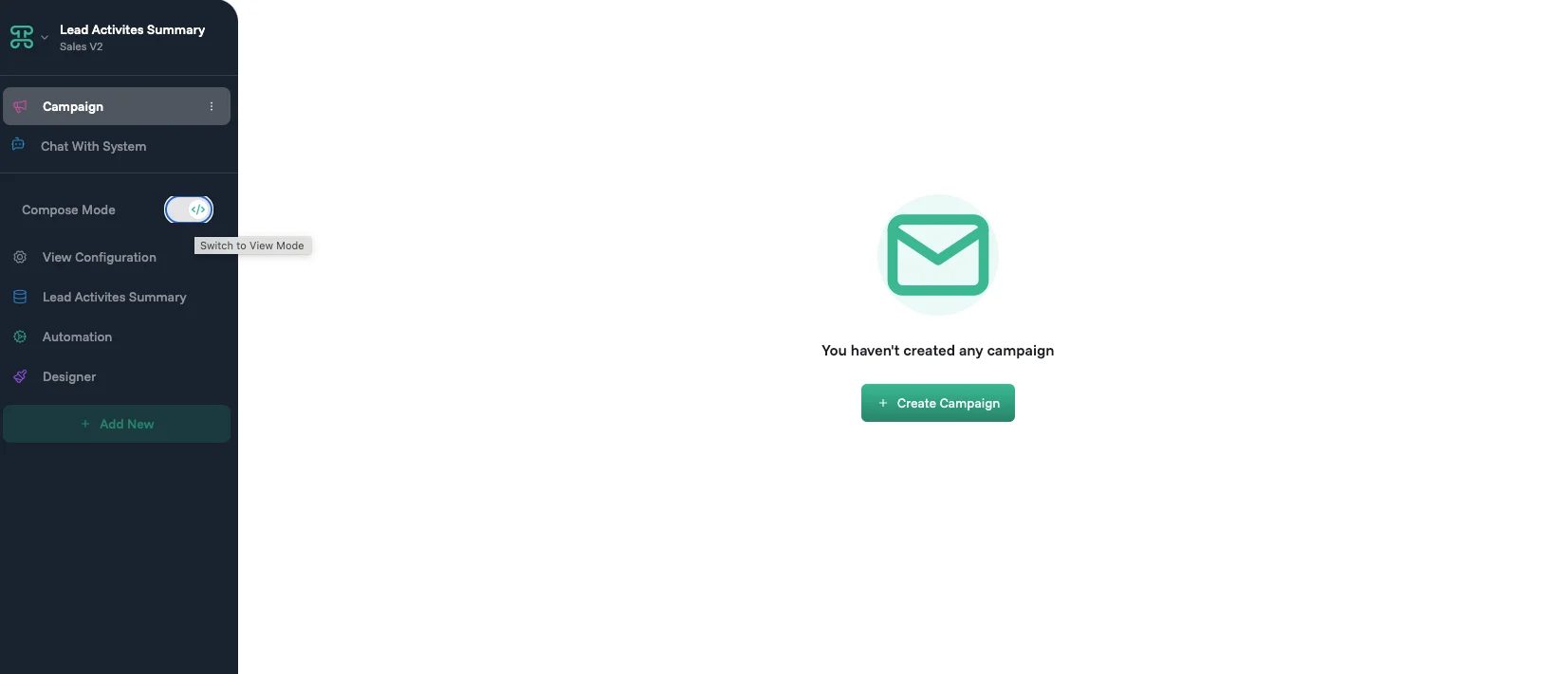
Step 1: Enter Build Mode
Navigate to your Board and toggle on Build Mode in the left sidebar.
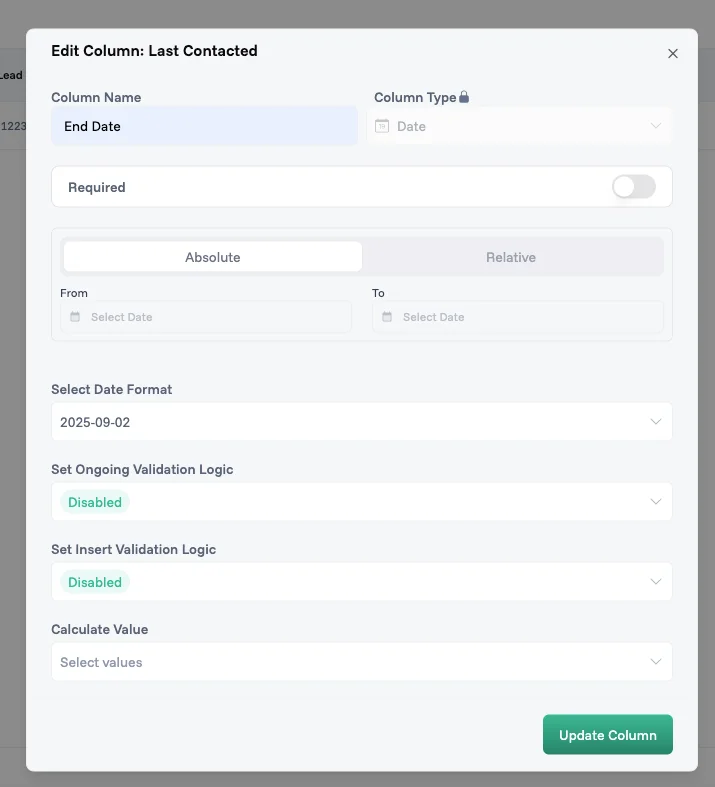
Step 2: Select Your Field
Click on the "End Date" column header to open configuration options.
Step 3: Add Validation Logic
Click "Set Validation Logic" to open the Logic Builder.
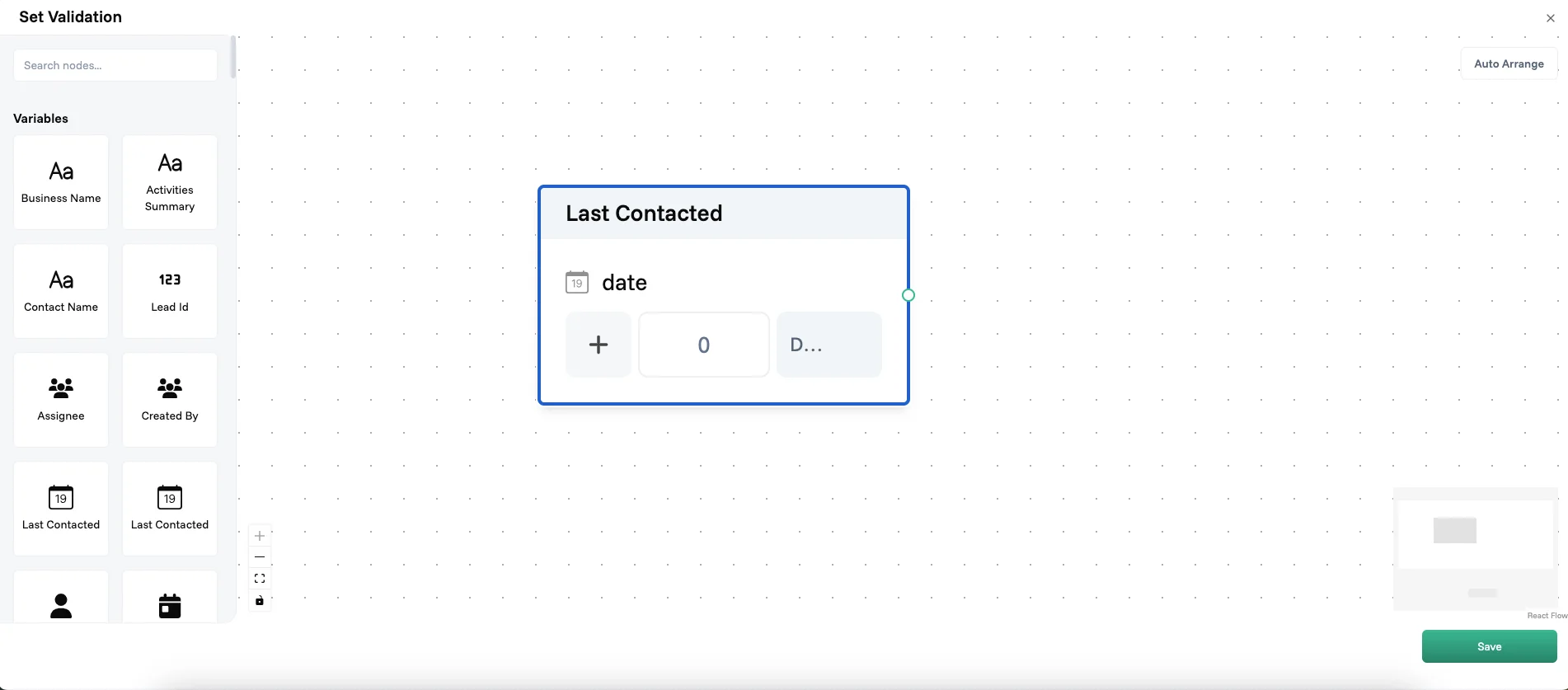
Step 4: Write Your Formula
CurrentValue >= @StartDate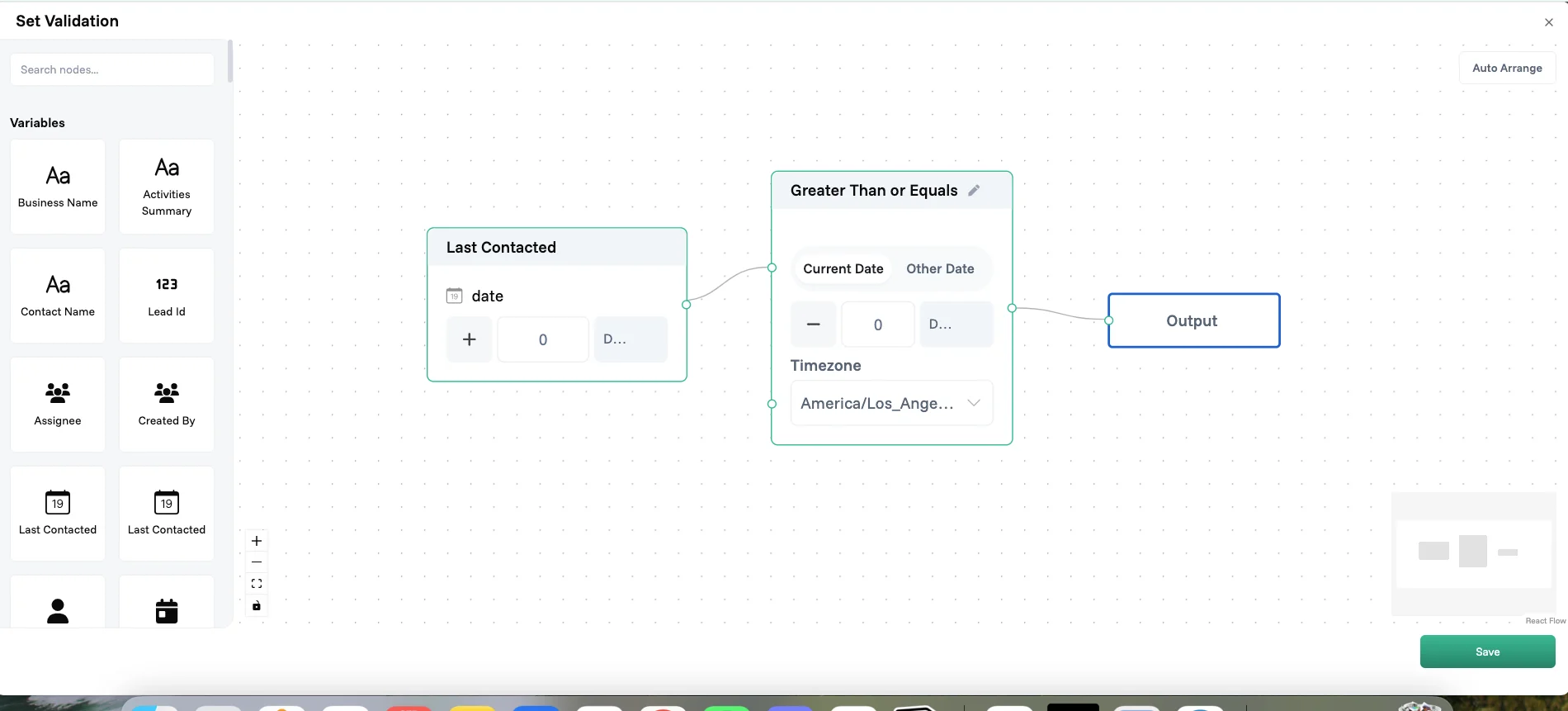
Step 5: Save and Test
Click Save. Try entering an end date before the start date—you'll see an instant validation warning!
💡 Pro Tip: When validation fails, users see a warning signal. (see screenshot below)
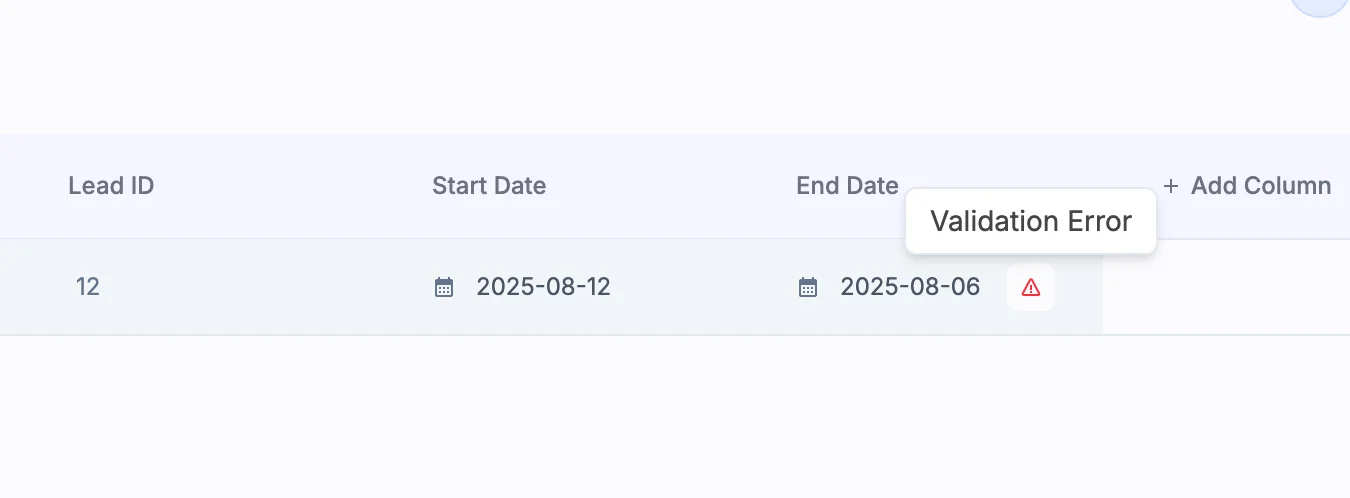
🎉 Congratulations! You've just created your first decision logic rule. This simple rule will save hours of manual checking and prevent timeline conflicts.
Logic Composer Types
1. Value Logic (Formula-Based Calculation)
Value Logic brings spreadsheet-style intelligence directly into your database. Today, your team manually calculates totals, updates percentages, and adjusts prices—each calculation a chance for error, each update taking precious minutes. That commission spreadsheet maintained outside the system. Project percentages updated manually every Friday. Pricing formulas only Sarah knows. Value Logic automates these computations, ensuring every total is accurate, every percentage updates instantly, and formulas apply consistently regardless of who's working.
How to Access
Navigate to your Board → Enable Build Mode → Click any column header → Select "Calculate Value." For Options columns, select "Set Options Filter Logic" to dynamically control available options based on other field values.
How It Works
Value Logic allows any possible combination of operations using direct connections—no operator blocks needed. Build your logic flow by connecting nodes, and the result must connect to the output node. Reference other fields using the @ symbol (@FieldName), use standard operators (+, -, *, /), and leverage the full range of functions from text operations to advanced math.
Common Use Cases
Calculating order totals from line items, deriving commission percentages from sales amounts, setting default values based on other fields, conditional formatting logic, dynamic button states that appear only when specific conditions are met, and dynamically filtering dropdown options based on other field selections.
Calculation Triggers
Control when calculations execute by choosing the appropriate trigger:
On Row Creation runs once when a record is created. Perfect for setting initial values like default priorities or generating unique identifiers. The calculation locks in that initial value and doesn't change unless manually edited.
On Focus recalculates whenever a user clicks into the field. Ideal for values that might change based on other edits but don't need constant updates. A "Days Until Due" field might recalculate each time someone views it.
On Edit updates whenever dependent fields change. Your bread and butter for most calculations—totals that sum line items, markups that adjust with costs, scores that aggregate multiple factors. The calculation runs automatically, keeping values synchronized.
On Click waits for explicit user action. Place a calculate button in the field for expensive operations or when you want users to control timing. Useful for complex calculations that call external services or when you need to snapshot values at specific moments.
Always continuously recalculates in real-time as any dependent data changes. Best for critical metrics that must stay current, like inventory levels or live dashboard totals. Use sparingly as it can impact performance with complex calculations.
Never prevents automatic calculation entirely. The field can only be updated through manual entry or explicit actions. Useful for values you want to calculate once and preserve, or fields that serve as manual overrides to calculated values.
Example: Format dates for display
DATE_FORMAT(@DueDate, "YYYY-MM-DD HH:MM:ss") // Output: Jan 15, 2025 05:12:45 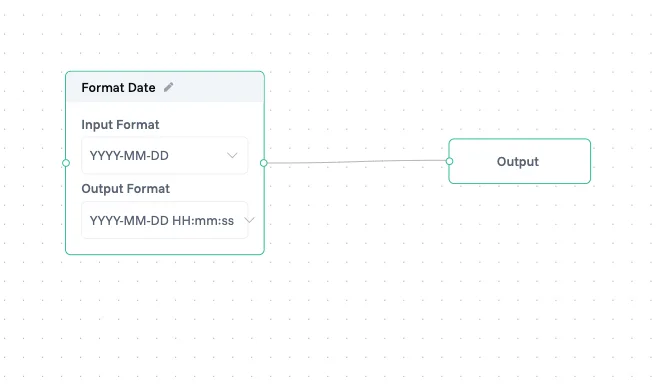
Set Options Filter Logic
Set Options Filter Logic is a special type of Value Logic used to dynamically control which options appear in dropdown fields (Options columns). Access it by enabling Build Mode, clicking on an Options column header, and selecting "Set Options Filter Logic."
This feature keeps forms clean by showing only relevant choices based on other field values. For example, when a user selects "Sales" in a Department field, the Expense Category dropdown can automatically show only sales-related expense types like Travel, Meals, and Hotels. When they select "IT," it shows Software, Hardware, and Cloud Services instead.
Set Options Filter Logic has access to all Value Logic operations, allowing you to create sophisticated conditional logic for option filtering.
Chained Calculations
Calculated fields can reference other calculated fields, creating sophisticated derived data. A "Subtotal" field sums line items. A "Tax" field calculates from the subtotal. A "Total" field adds them together. Change any input, and the entire chain updates automatically.
⚠️ Warning: Circular references (A→B→C→A)will prevent your logic from saving. Always design calculation flows in one direction
2. Decision Logic (Validation)
Decision Logic validates data entry and enforces business constraints at the column level. Every typo, every impossible date, every out-of-range value that enters your system creates a ripple effect—reports show wrong numbers, automations fail, teams make decisions on bad data. That invoice with a negative amount. The project end date before it started. The order quantity exceeding your entire inventory. Decision Logic catches these errors at the source, preventing bad data from ever entering your system and eliminating hours of cleanup work.
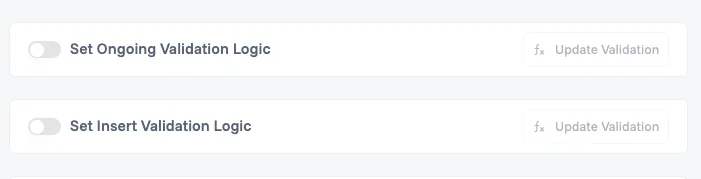
How to Access: Navigate to your Board → Enable Build Mode → Click any column header → Select "Set Ongoing Validation Logic" (for updates after creation) or "Set Insert Validation Logic" (for validation only during record creation).
How It Works: When you set decision logic on a field, the Logic Composer presents a visual interface where you'll define your rule. The column being validated must be present in your logic flow and must connect to the output node. Reference other fields using the @ symbol (@FieldName), use comparison operators (>, <, ==, !=), and combine conditions with logical operators (AND, OR, NOT). When validation fails, users see a warning signal on the field, preventing them from saving invalid data. The validation message guides them to correct the issue before proceeding.
Validation Types
Set Ongoing Validation Logic applies rules to data updates and modifications after the record exists. This ensures data integrity is maintained throughout the record's lifecycle. Use this for rules that should always apply, like ensuring end dates never precede start dates, even when updating existing records.
Set Insert Validation Logic validates data only when new records are first created. Use this for rules that should apply during creation but may be relaxed for updates. For example, you might require a field during creation but allow it to be empty in historical records.
Common Use Cases: Ensuring date fields are in logical order (end dates after start dates), validating numeric ranges (discounts between 0-100%), checking required field combinations (if Country is "USA", State is required), preventing duplicate entries, enforcing business rules (manager approval required for amounts over threshold), and cross-field validation (ensuring total equals sum of line items).
Example: Prevent Self-Assignment
A simple validation to ensure a task assignee is different from the task creator (preventing self-assignment):
CurrentValue != @CreatedBy 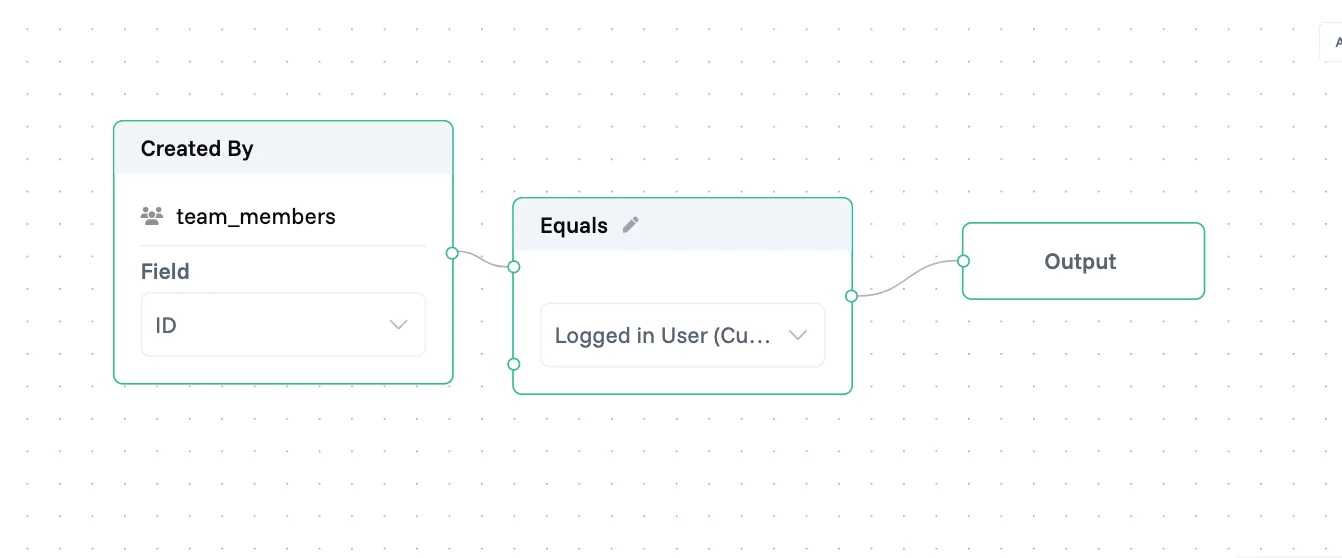
3. Row Filtering
Row Filtering helps you segment and organize your data into meaningful views, enabling role-based data access and contextual view customization where users see only the records relevant to their responsibilities or current workflow context. Every team needs different perspectives on the same data—sales needs active opportunities, support needs urgent tickets, managers need their team's tasks. Without filters, everyone scrolls through irrelevant records, wasting time and missing what matters. Row Filtering creates focused views that show each person exactly what they need to see.
How to Access: Click the filter icon in any view's toolbar (Kanban, Calendar, Table, List Detail, Group Detail, Tracker) → Select "Create a Filter" or "Define Filter." In Calendar views, use "Create a new Slice" to filter by date ranges or other criteria. Your filters appear as tabs at the top of the view, making it easy to switch between different data segmen
How It Works: Filter logic must produce a boolean output (true/false) connected to the output node. Build conditions like Status == "Active", @Amount > 1000, or @Department in ["Sales", "Marketing"]. Connect multiple conditions using AND/OR operators to create sophisticated filters. The logic evaluates each record and displays only those where the condition returns true.
Common Use Cases: Creating status-based views (New, Active, Completed), filtering by assignment (My Tasks, Team Tasks), segmenting by value ranges (High Value Deals, Small Orders), and filtering by date ranges (This Week, This Month).
4. Action Logic (Conditional Behaviors)
Action Logic defines what happens when users interact with elements like buttons. It controls how values change, which datasets are impacted, and enables reading from or writing to connected datasets seamlessly.
How to Access: Navigate to your Board → Enable Build Mode → Click on button columns or action elements → Configure the action logic to define value changes and dataset operations. Enable "Conditional Button State" to add validation rules that control when the button is enabled or disabled.
How It Works: Action Logic uses the full Value Logic operation set to define both the actions a button performs and the conditions under which it's available. Build logic that updates values, creates or modifies records in connected datasets, pulls data from related sources, and syncs information across your workspace. The validation component (Conditional Button State) evaluates whether the button should be enabled based on user roles, record status, field values, and other contextual factors.
Common Use Cases: Updating values across multiple connected datasets with a single click, syncing data between boards, creating records in linked datasets, pulling values from connected sources, and building workflows that read/write data across your workspace.
Validation (Conditional Button State): Use conditional behaviors to validate whether a button should be enabled or disabled based on specific criteri
Example: Manager Approval with User Validation
Set approval condition to ensure only the designated manager who is logged in can approve the requests:
@LoggedInUser == @Manager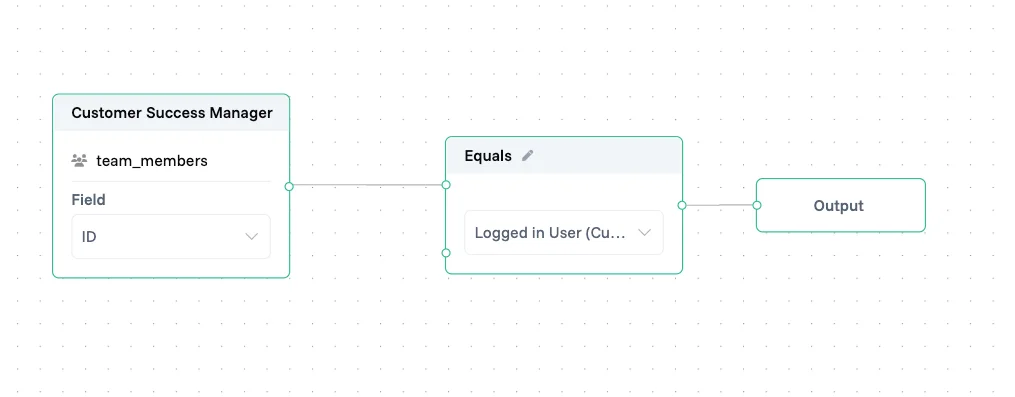
Logic Composer Operations Reference
The following reference tables list all available operations in the Logic Composer. Each operation shows which logic types support it using ✓ (available) or ✗ (not available).
For detailed definitions, examples, and usage guidance for each operation, see the @Logic Composer Operations Catalog
Input Nodes
Node Type | Value Logic | Decision Logic | Row Filtering |
Custom Input | ✓ | ✓ | ✓ |
Dynamic User Input | ✓ | ✓ | ✓ |
Text Operations
Operation Value | Value Logic | Decision Logic | Row Filtering |
Formulate Text | ✓ | ✓ | ✗ |
Concatenate | ✓ | ✓ | ✗ |
Replace | ✓ | ✓ | ✗ |
Uppercase | ✓ | ✓ | ✗ |
Lowercase | ✓ | ✓ | ✗ |
Substring | ✓ | ✓ | ✗ |
Length | ✓ | ✓ | ✗ |
Split | ✓ | ✓ | ✗ |
Join | ✓ | ✓ | ✗ |
Starts With | ✓ | ✓ | ✗ |
Ends With | ✓ | ✓ | ✗ |
Index Of | ✓ | ✓ | ✗ |
Pad Start | ✓ | ✓ | ✗ |
Pad End | ✓ | ✓ | ✗ |
Repeat | ✓ | ✓ | ✗ |
Arithmetic Operations
Operation Value | Value Logic | Decision Logic | Row Filtering |
Add | ✓ | ✓ | ✗ |
Subtract | ✓ | ✓ | ✗ |
Multiply | ✓ | ✓ | ✗ |
Divide | ✓ | ✓ | ✗ |
Modulo | ✓ | ✓ | ✗ |
Round | ✓ | ✓ | ✗ |
Floor | ✓ | ✓ | ✗ |
Ceil | ✓ | ✓ | ✗ |
Absolute | ✓ | ✓ | ✗ |
Square | ✓ | ✓ | ✗ |
Minimum | ✓ | ✓ | ✗ |
Maximum | ✓ | ✓ | ✗ |
Random | ✓ | ✓ | ✗ |
Random Between | ✓ | ✓ | ✗ |
Advanced Math
Operation | Value Logic | Decision Logic | Row Filtering |
Power | ✓ | ✓ | ✗ |
Square Root | ✓ | ✓ | ✗ |
Exponential | ✓ | ✓ | ✗ |
Natural Log | ✓ | ✓ | ✗ |
Log10 | ✓ | ✓ | ✗ |
Log2 | ✓ | ✓ | ✗ |
Factorial | ✓ | ✓ | ✗ |
GCD | ✓ | ✓ | ✗ |
LCM | ✓ | ✓ | ✗ |
Array Operations
Operation | Value Logic | Decision Logic | Row Filtering |
Includes in Array | ✓ | ✓ | ✗ |
Nth Element | ✓ | ✓ | ✗ |
First Element | ✓ | ✓ | ✗ |
Last Element | ✓ | ✓ | ✗ |
Slice Array | ✓ | ✓ | ✗ |
Reverse Array | ✓ | ✓ | ✗ |
Unique Values | ✓ | ✓ | ✗ |
Flatten Array | ✓ | ✓ | ✗ |
Remove Empty | ✓ | ✓ | ✗ |
Count Elements | ✓ | ✓ | ✗ |
Sum of Array | ✓ | ✓ | ✗ |
Average | ✓ | ✓ | ✗ |
Min in Array | ✓ | ✓ | ✗ |
Max in Array | ✓ | ✓ | ✗ |
Statistics
Operation | Value Logic | Decision Logic | Row Filtering |
Median | ✓ | ✓ | ✗ |
Mode | ✓ | ✓ | ✗ |
Std Deviation | ✓ | ✓ | ✗ |
Variance | ✓ | ✓ | ✗ |
Count Non-Empty | ✓ | ✓ | ✗ |
Percentile | ✓ | ✓ | ✗ |
Quartile | ✓ | ✓ | ✗ |
Rank | ✓ | ✓ | ✗ |
Correlation | ✓ | ✓ | ✗ |
Forecast | ✓ | ✓ | ✗ |
Trend | ✓ | ✓ | ✗ |
Growth Rate | ✓ | ✓ | ✗ |
Date/Time Operations
Operation | Value Logic | Decision Logic | Row Filtering |
Date Add | ✓ | ✓ | ✗ |
Date Subtract | ✓ | ✓ | ✗ |
Date Format | ✓ | ✓ | ✗ |
Current DateTime | ✓ | ✓ | ✗ |
Time Subtract | ✓ | ✓ | ✗ |
Convert Date | ✓ | ✓ | ✗ |
Fetch Operations
Operation | Value Logic | Decision Logic | Row Filtering |
Fetch | ✓ | ✗ | ✗ |
Logic Operations
Operation | Value Logic | Decision Logic | Row Filtering |
Condition | ✓ | ✗ | ✗ |
Branch | ✓ | ✗ | ✗ |
AI Operations
Operation | Value Logic | Decision Logic | Row Filtering |
AI Generator | ✓ | ✗ | ✗ |
Advanced
Operation | Value Logic | Decision Logic | Row Filtering |
Code Block | ✓ | ✗ | ✗ |
Cast | ✓ | ✓ | ✗ |
Comparison Operations
Operation | Value Logic | Decision Logic | Row Filtering |
Contains | ✓ | ✓ | ✓ |
Equals | ✓ | ✓ | ✓ |
Not Equals | ✓ | ✓ | ✓ |
Greater Than | ✓ | ✓ | ✓ |
Less Than | ✓ | ✓ | ✓ |
Greater or Equal | ✓ | ✓ | ✓ |
Less or Equal | ✓ | ✓ | ✓ |
Is Present in List | ✓ | ✓ | ✓ |
Is Empty | ✓ | ✓ | ✓ |
Is Not Empty | ✓ | ✓ | ✓ |
Length In | ✓ | ✓ | ✓ |
Length >= | ✓ | ✓ | ✓ |
Length <= | ✓ | ✓ | ✓ |
Joiners
Operation | Value Logic | Decision Logic | Row Filtering |
AND | ✓ | ✓ | ✓ |
OR | ✓ | ✓ | ✓ |
Encoding/Decoding Operations
Operation | Value Logic | Decision Logic | Row Filtering |
Base64 Encode | ✓ | ✓ | ✗ |
Base64 Decode | ✓ | ✓ | ✗ |
URL Encode | ✓ | ✓ | ✗ |
URL Decode | ✓ | ✓ | ✗ |
HTML Encode | ✓ | ✓ | ✗ |
HTML Decode | ✓ | ✓ | ✗ |
Encode (Generic) | ✓ | ✓ | ✗ |
Decode (Generic) | ✓ | ✓ | ✗ |
Hash & Crypto
Operation | Value Logic | Decision Logic | Row Filtering |
MD5 Hash | ✓ | ✓ | ✗ |
SHA1 Hash | ✓ | ✓ | ✗ |
SHA256 Hash | ✓ | ✓ | ✗ |
Hash (Config) | ✓ | ✓ | ✗ |
Encrypt | ✓ | ✓ | ✗ |
Decrypt | ✓ | ✓ | ✗ |
Utility Operations
Operation | Value Logic | Decision Logic | Row Filtering |
Sleep/Delay | ✓ | ✓ | ✗ |
Throttle | ✓ | ✓ | ✗ |
Delay | ✓ | ✓ | ✗ |
Debounce | ✓ | ✓ | ✗ |
Memoize/Cache | ✓ | ✓ | ✗ |
Security Operation | ✓ | ✓ | ✗ |
Utility Operation | ✓ | ✓ | ✗ |
UUID Generator | ✓ | ✓ | ✗ |
Best Practices
Design Principles
Start Simple, Iterate Complexity — Begin with basic rules that handle the common case. A validation checking dates might start as @EndDate > @StartDate. As you discover edge cases, enhance it: account for timezone differences, business days only, or blackout periods. Each iteration makes your logic more robust without overwhelming initial implementation.
Make Logic Self-Documenting — Future maintainers (including yourself) need to understand your logic's intent. Use clear field names: @CustomerAcquisitionDate beats @Date1. Structure complex formulas with line breaks and indentation. Add comments in description fields explaining business reasoning, not just technical implementation.
Design for Change — Business rules evolve. Hard-coding values creates brittleness. Instead of IF(@Amount > 5000, "Requires Approval", "Auto-Approved"), reference a configuration field: IF(@Amount > @ApprovalThreshold, "Requires Approval", "Auto-Approved"). When thresholds change, update one field instead of hunting through dozens of formulas.
Testing Strategies
🧪 Test Data Best Practice: Create a dedicated "Test Workspace" with sample data covering all edge cases. Reset it monthly to maintain a clean testing environment.
Test Edge Cases — Your logic works for typical values, but what about extremes? Test with zero, negative numbers, very large values. Try empty fields, special characters in text, dates far in the past or future. If your formula divides by a field, what happens when it's zero?
Validate Cross-Field Dependencies — When fields depend on each other, test all combinations. If status determines which fields are required, check every status. If calculations chain together, verify the entire flow from input to final result. One broken link breaks the entire chain.
Use Test Records — Create dedicated test records to verify logic without affecting real data. Name them clearly: "TEST - Do Not Delete - Validation Testing". Build a suite covering your main scenarios. Run through them after major logic changes to ensure nothing broke.
Maintenance
Version Control Through Documentation — While the Logic Builder doesn't version formulas, you can track changes manually. Before modifying complex logic, copy the current formula to the field description with a date stamp. This creates an audit trail and recovery path if changes introduce issues.
Monitor Performance Impact — Complex calculations on large datasets can slow your system. If users report sluggish forms, review your logic. Consider moving expensive calculations from "On Edit" to "On Focus" or "On Click". Sometimes splitting one complex calculation into several simpler ones improves performance.
Regular Logic Audits — Schedule quarterly reviews of your logic rules. Business processes change, making some rules obsolete. New patterns emerge that could be automated. Logic that seemed clear six months ago might need documentation updates. These audits keep your system aligned with actual business needs.
Troubleshooting
Common Issues
"Circular Reference Detected"
This error appears when fields reference each other in a loop. Field A depends on Field B, which depends on Field C, which depends on Field A. The Logic Builder prevents saving such configurations.
Solution: Map out field dependencies on paper. Identify the cycle. Usually, one calculation should be "primary" with others deriving from it. Restructure your logic to flow in one direction.
Validation Always Fails
Your validation logic might be too restrictive or checking the wrong condition. Common culprits include comparing different data types (text vs number), timezone mismatches in date comparisons, or logic that can never evaluate to true.
Solution: Temporarily simplify your validation to isolate the issue. Start with true (allows everything), then add conditions one by one until you find the problem. Check data types match on both sides of comparisons.
Calculations Show Wrong Results
Suspect order of operations issues, incorrect field references, or data type mismatches. The formula might be correct but operating on unexpected values.
Solution: Break complex calculations into steps. Create temporary calculated fields for each sub-calculation. This shows intermediate values, making it easier to spot where things go wrong. Check that referenced fields contain the expected data type and format.
Options Not Filtering
Dynamic filters might reference the wrong fields, use incorrect syntax, or have logic that never matches actual data.
Solution: Log the values being compared. Add a calculated field showing @Category + " | " + @Subcategory to see actual values. Ensure your filter conditions match these exactly, including case sensitivity and spacing.
Performance Issues
Slow Form Loading
Too many "On Edit" calculations can make forms sluggish. Each keystroke triggers recalculation of dependent fields.
Solution: Audit your calculation triggers. Move non-critical calculations to "On Focus" or "On Click". Consider whether some calculated values could be computed during a nightly batch process instead of real-time.
Timeout Errors
Extremely complex logic or calculations over large datasets might exceed processing limits.
Solution: Simplify nested IF statements using lookup tables. Instead of 20 nested conditions for pricing tiers, create a Pricing Tiers dataset and use a reference field. Break monolithic calculations into smaller, focused pieces.
Next Steps
Explore related Proma features that enhance automation capabilities:
@Automation Engine - Orchestrates multi-step workflows using Logic Builder's validated and calculated data.
@Smart Columns - Add intelligent, automated fields to your datasets
@Interfaces - Build custom user interfaces that trigger and display automations
Have questions? Our team is ready to help at support@proma.ai