Workspaces and collections keep your systems organized, so your team always knows where to find their work.
A workspace is like a folder that holds all the systems for a specific project, department, or team. Each workspace has its own access settings, so you control who can see and edit what's inside. A collection is an optional label that groups related workspaces together. Collections don't change access, they just keep your sidebar and Workspaces page tidy as your organization grows.
For example, a Sales workspace and a Marketing workspace can each hold their own systems, and a Sales & Marketing collection groups them so the whole go-to-market team finds everything in one place.
Create a workspace
You can start from any of these places on your Home screen:
The + Add a Workspace button in the top right
The + icon next to Workspaces in the sidebar
+ Add workspace at the bottom of the sidebar
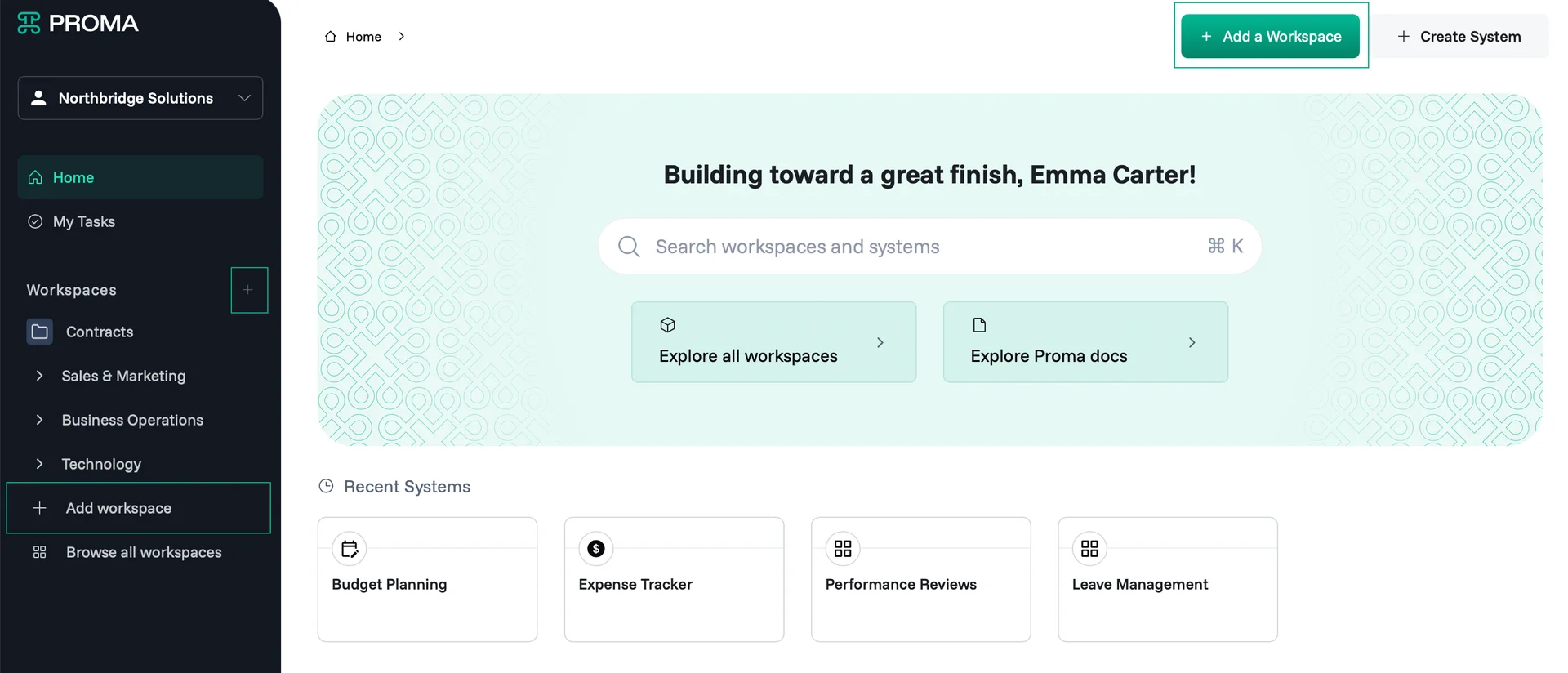
To create a workspace:
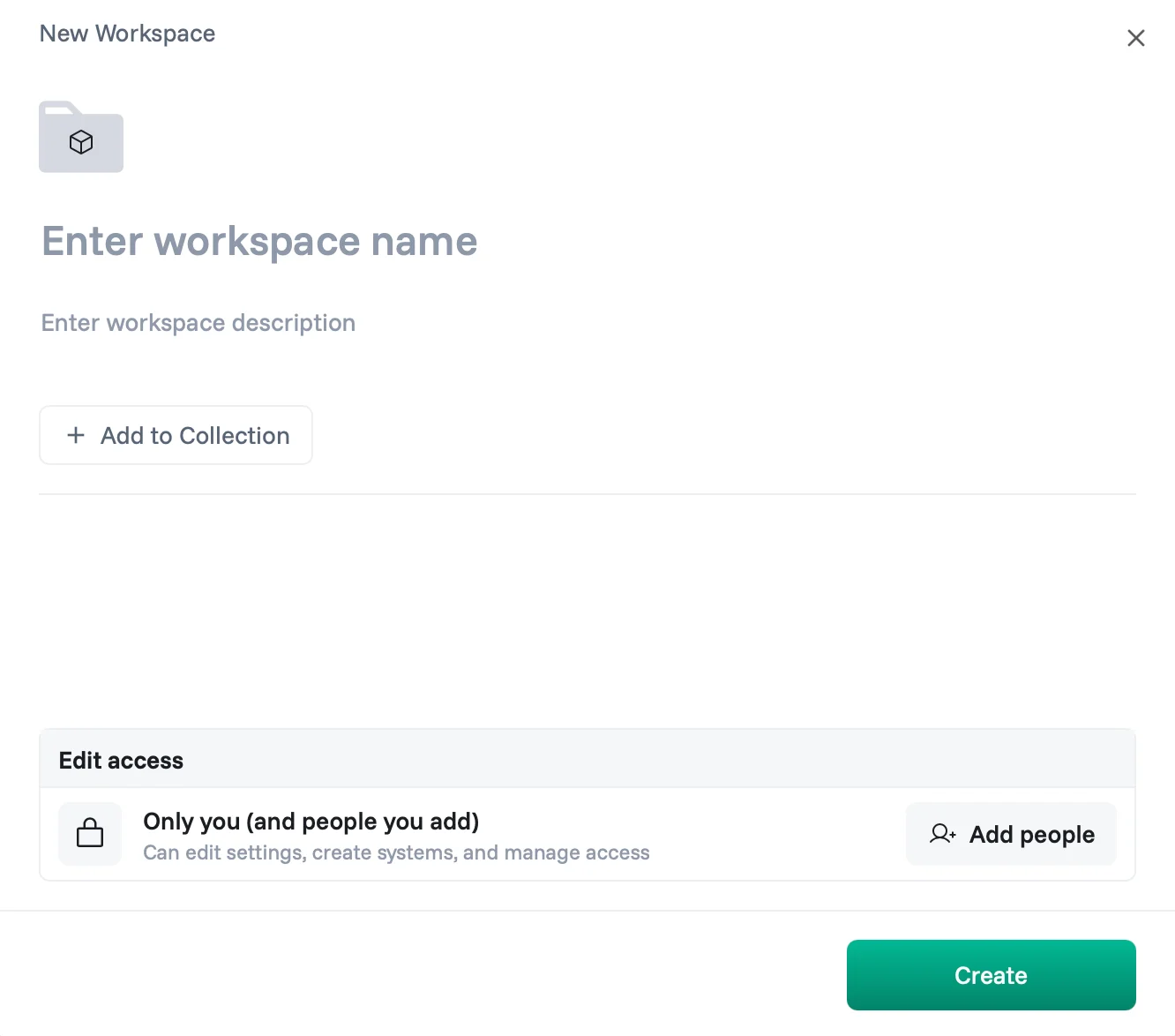
Click + Add a Workspace.
Enter a workspace name.
(Optional) Enter a description.
(Optional) Click + Add to Collection to place the workspace in an existing collection.
Under Edit access, click Add people to choose who can edit settings, create systems, and manage access. By default, only you have access.
Click Create.
Manage a workspace
Click ⋮ on a workspace card to open its options:
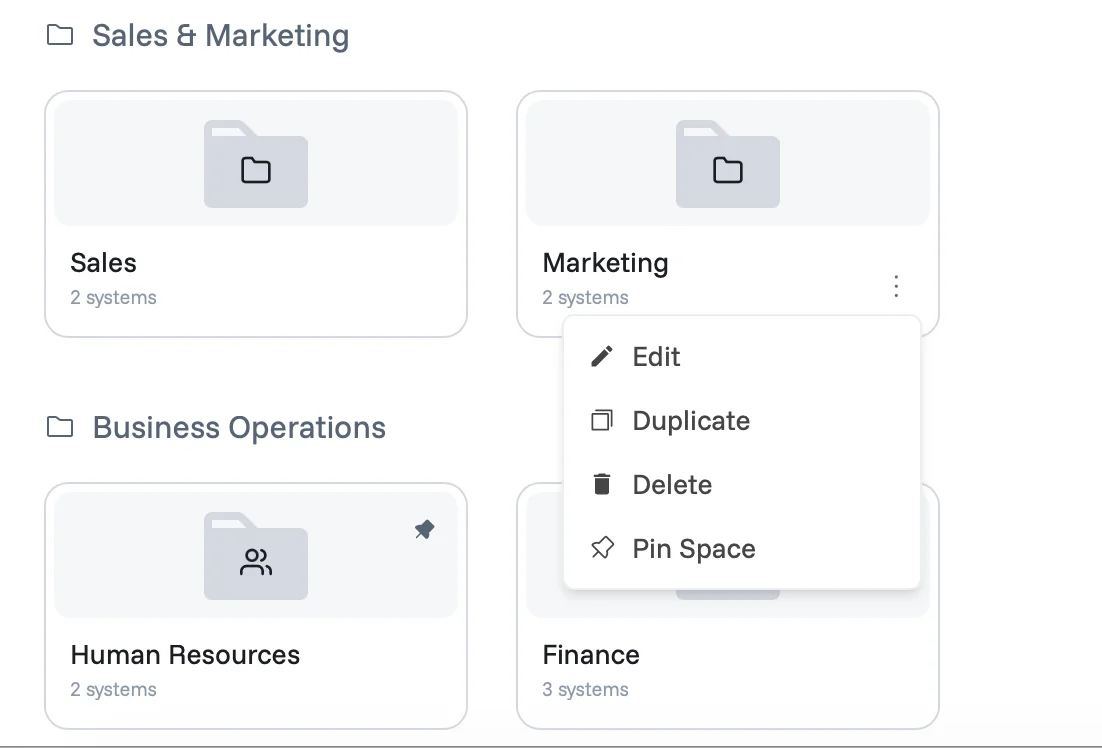
Option | What it does |
Edit | Change the workspace name, description, and access |
Duplicate | Create a copy of the workspace |
Delete | Remove the workspace and all systems inside it |
Pin Space | Pin the workspace for quick access |
Create a collection
Click Browse all workspaces in the sidebar.
Click Create a Collection in the top right.
Enter a collection name.
Click Add workspaces to collection and select the workspaces you want to group.
Click Create Collection.
Your collection appears as a section on the Workspaces page and as an expandable group in the sidebar. Click the arrow next to a collection in the sidebar to see the workspaces inside.
Edit or delete a collection
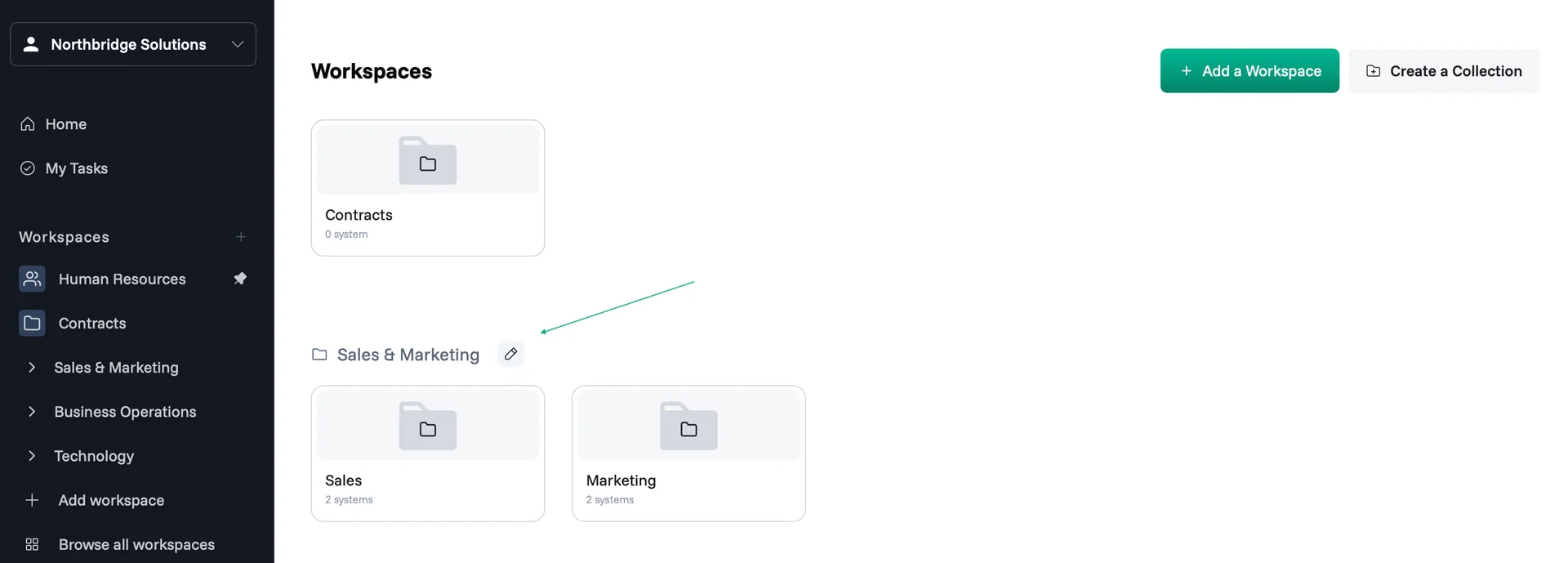
Click Browse all workspaces in the sidebar.
Click the pencil icon next to the collection name.
From here you can:
Rename the collection.
Add workspaces using the search field.
Remove a workspace by clicking X on its tag.
Click Delete Collection to remove the collection.
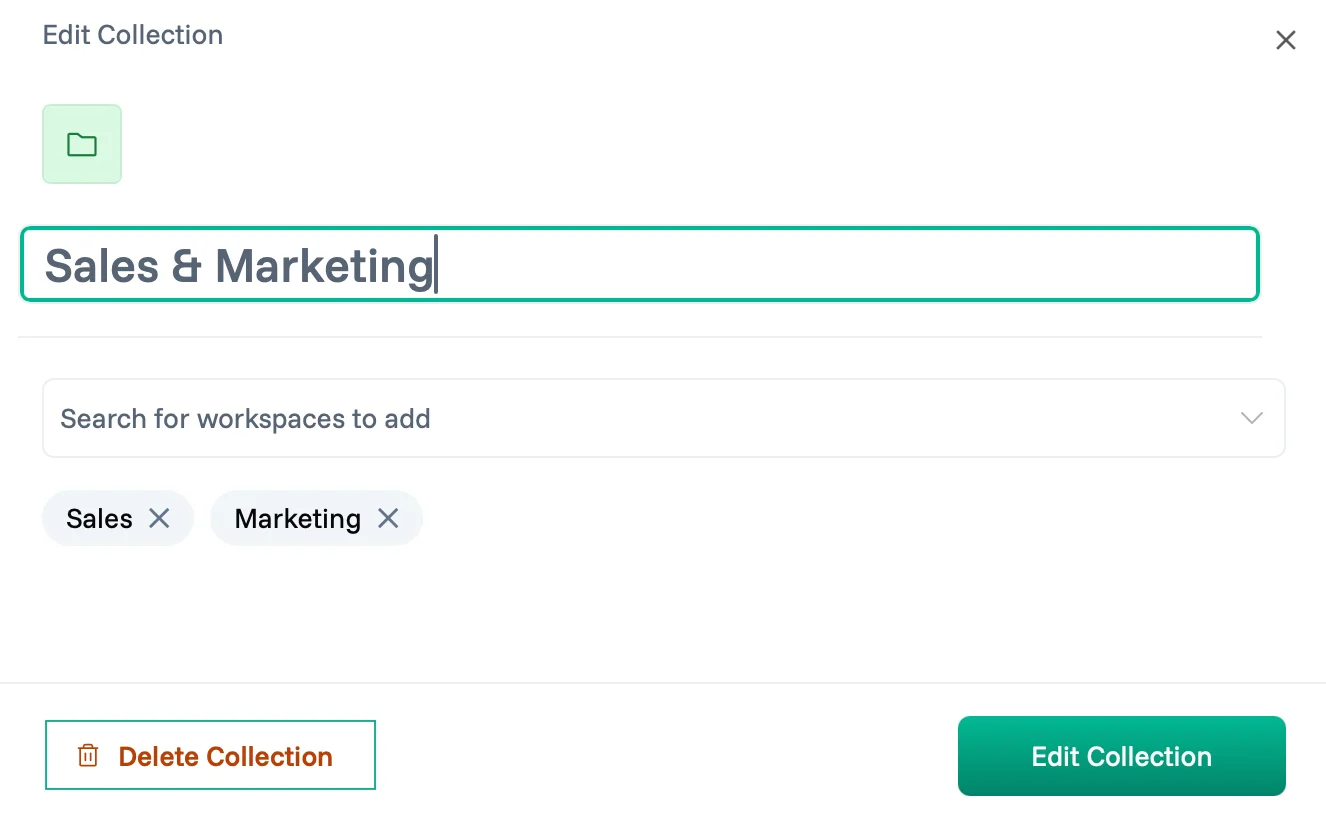
Click Edit Collection to save your changes.
Note: Deleting a collection removes the label only. The workspaces inside it are not deleted.
Find your work
As you work, Proma keeps your most recent systems and workspaces on the Home screen under Recent Systems and Recent Workspaces, so you can jump back in without searching. To find anything else, click the search bar or press Cmd + K (Ctrl + K on Windows).
Have questions? Our team is ready to help at support@proma.ai.